Traffic Tool Essentials [EN]
Traffic Tool Essentials (TTE) is a modification designed for traffic optimization in Cities: Skylines II
Start and
Introduction
General Information
**Foreword**
Traffic Tool Essentials originally emerged out of necessity and is based at its core on the framework that slyh thankfully already built:
"Traffic Lights Enhancement" - a mod, originally developed by "slyh" (published on the forum and Paradox under the account name "C2VMTLE"), was abandoned along with many dependent users, including myself. My traffic network was nearly useless without configurable intersections - and after several months without any updates or activity since game version 1.3.3, I created a fork of the TLE mod, which from the beginning became more comprehensive than initially expected, which is why I also directly performed a renaming.
Meanwhile, around the basic framework of the original mod, centered on pure phase and phase cycle editing, a system has grown that is significantly more complex and hopefully can satisfy every traffic nerd, like myself, better and better over time.
Many sleepless nights have already gone into this project and surely more will follow. It's a lot of fun to walk this journey together with you and I'll do my best not to disappoint you!
Great to have you here and that you might want to choose TTE, or have already chosen it :)
This is TTE
Traffic Tool Essentials is designed as a meaningful extension of the game in areas where the game itself offers no solutions for existing problems. With currently more than 1800 hours of gameplay, I believe I have a good sense for what can be useful and helpful - simply because I can use it myself.
**The following features are already available:**
Phase Editor
- Individual Traffic Light Phases: Create custom signal plans for any intersection.
- Sequential/Legacy Mode: Traffic lights cycle through phases either in fixed order or weighted by waiting vehicles.
- Copy & Paste: Easily transfer phase settings between different intersections.
- Delete Confirmation: Prevents accidental deletion of phases.
Green Wave
- Group Control: Combines multiple intersections for synchronized timing.
- Individual Offsets: Set precise time offsets between intersections.
- Real-time Status: Synchronization status directly visible in the dashboard.
- Automatic Resynchronization: Corrects timing deviations immediately and automatically.
Traffic Dashboard
- 24-Hour History: Traffic flow visualized as a sparkline graph.
- Real-time Vehicle Count: Precise data instead of just estimates!
- Peak Time Analysis: Display of main traffic times and maximum vehicles per hour.
- Queue Counter: Keep track of waiting vehicles.
- Persistent Data: All statistics remain even after saving and loading.
Statistics
- Timer Display: Overview of current phase durations.
- Priority Information: Details on priority switching.
- Traffic Flow Monitoring: Analyze throughput in real-time.
- Lane Utilization: Track the occupancy of individual lanes.
***Upcoming Features (Work in Progress)***
Mobility Hubs
- Multimodal Nodes: Unlock the full potential of your traffic network.
- Park & Ride Integration: Enable commuters to seamlessly switch from cars to public transit, relieving inner cities.
- Centralized Transfer Points: Optimize routing between bus, rail, and individual traffic.
Traffic Management Center (TMC)
- Holistic Overview: Monitor individual traffic and public transit.
- Real-time Network Analysis: Identify information and problems of the traffic network throughout the city at a glance.
- Fleet Management: Track the punctuality of your public transportation live.
Quick-Cycle Templates
- Phase Templates: Use predefined standard cycles for common intersection types.
- One-Click Setup: Apply complex traffic light phases to any intersection with just one click.
- Library System: Create your own best-practice templates and roll them out citywide.
Intersection Configuration
Getting Started
Getting Started
How to Begin / Opening the Menu

- As soon as you click on the traffic light icon in the upper left corner of the game in your toolbar, the main menu of TTE opens. It looks like this.
- To now configure intersections, click on the corresponding button.
- Don't be confused about "Mobility Hub", you won't find this feature in your mod version yet - it is in the early development phase.
Selecting an Intersection

- Select "Edit intersection phases" in the open TTE menu.
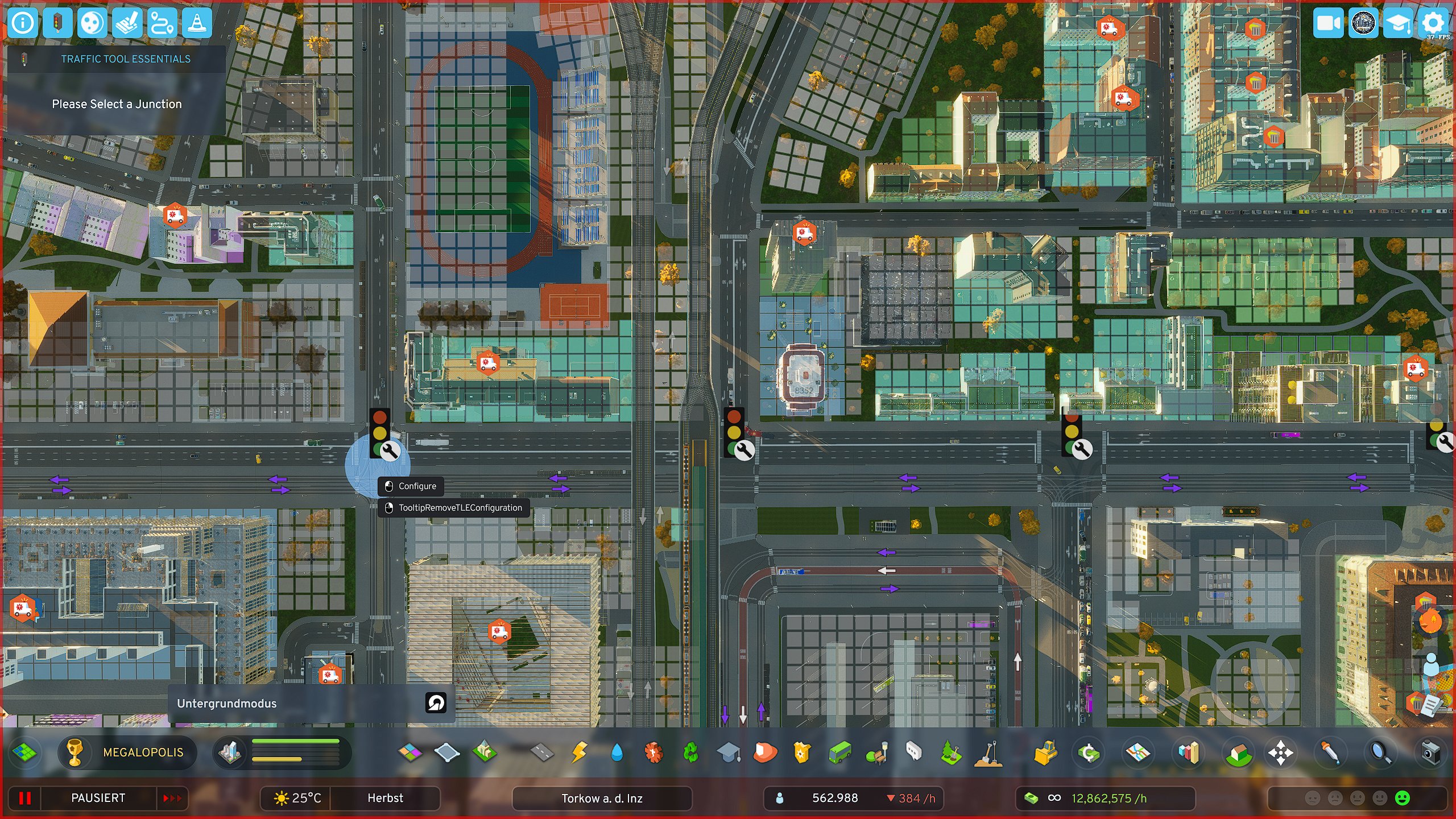
- The selection tool is now activated and you can only click on intersections.
- ESC to exit the selection tool.
**Selection Tool**
Hover with the selection tool over the desired intersection and click with the left mouse button. This takes you to the editor of the respective intersection.
Editing an Intersection
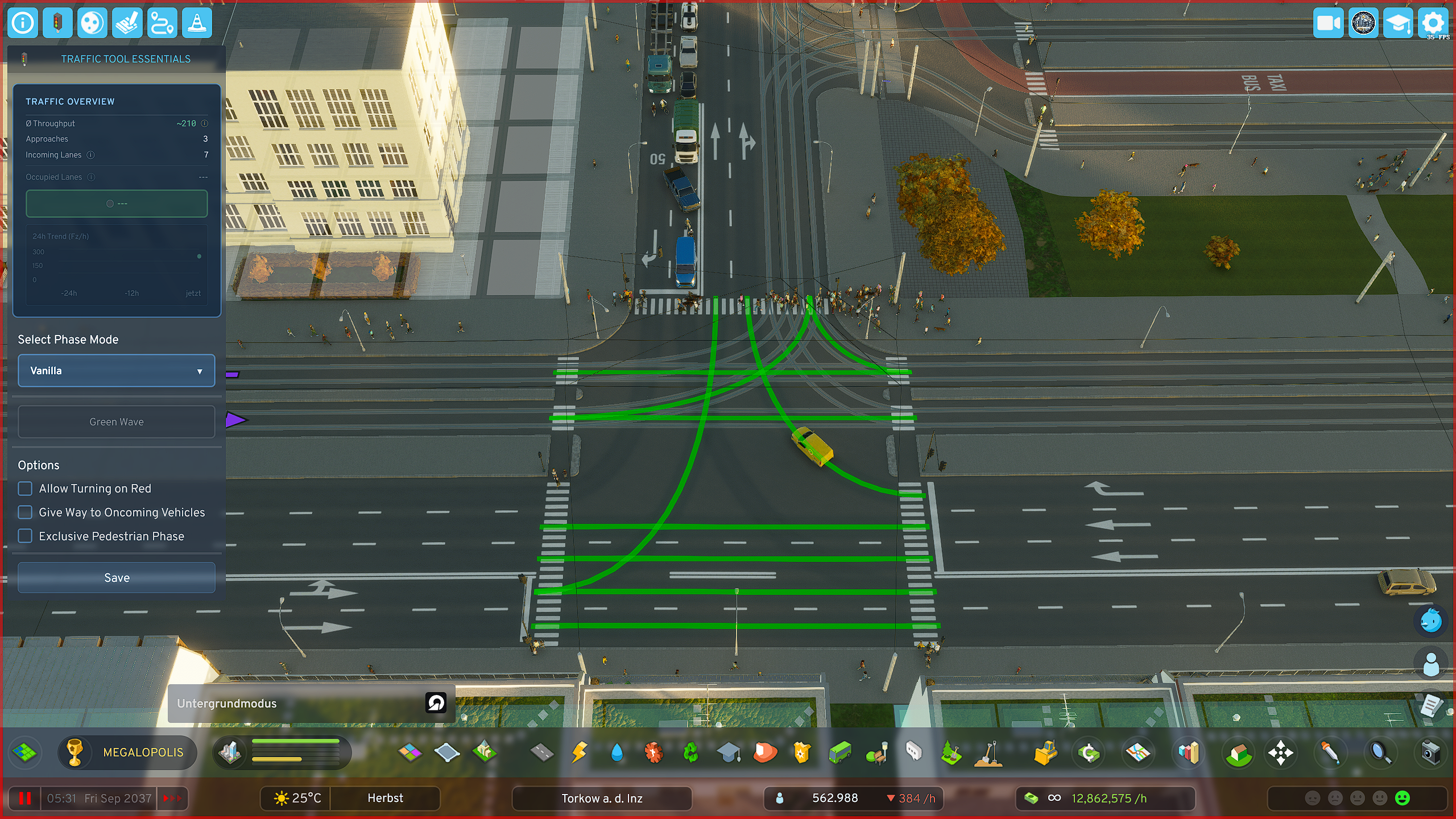
Once you have clicked on an intersection, you go directly to the editor of the respective intersection.
There are predefined quick-select phase templates, such as "Split Phase", or "Extended Split Phase".
**Intersection Editor** - In the editor you have an immediate rough overview of your selected intersection's data - You have **additional options**, e.g. **"Turn on red"** or "**Exclusive pedestrian phase**", to better adapt your intersection to local conditions
Predefined Settings
Predefined Settings
Predefined Modes
The mod comes with several predefined modes that can be sufficient in some situations to significantly improve intersection performance. These include the following - and what they do:
- Vanilla:
Straight/turning protected, one turning side grants priority (LHT: Right turners / RHT: Left turners) - Split Phase:
Only one road approaching the intersection has green at a time - Extended Split Phase:
Like Split Phase, but additionally with protected turning lanes for the cross street - Protected Left/Right Turn:
First the turning lane switches (LHT: Left / RHT: Right), then the regular traffic flow for straight/opposite direction follows
For advanced **details** and **real vehicle counting, occupied lanes, waiting vehicles, etc.** a **custom phase cycle** is required
For complicated intersections it is always recommended to design custom phase cycles to experience the best performance and most fun with the mod's features
Predefined Options
The mod comes with several predefined options with which you can extend the predefined modes, which can again significantly improve intersection performance. These include the following - and what they do:
- Allow Turn on Red:
Allows turning (LHT: Left / RHT: Right) despite a red light - Yield to Oncoming Vehicles (Vanilla only):
Vehicles must watch for oncoming traffic when turning
(High traffic volume can reduce effectiveness when drivers aggressively "push through") - Exclusive Pedestrian Phase:
All vehicles stop; a dedicated phase only for pedestrians becomes active- Pedestrian Phase Duration: Sets the green phase for pedestrians.
- Note: Only active with "Exclusive Pedestrian Phase". The traffic lights are not "smart" and do not extend automatically
**Parameter Description**
- Minimum Duration: The phase must run at least this long, completely independent of whether there is high or low traffic on it
- Maximum Duration: The phase may be active for at most this long (e.g., to actively reduce phase duration on lower-traffic arms to favor main traffic directions)
- Target Duration: Influences (as one of two factors) the duration of the green phase. 2x = twice as long, etc.
- Lane Occupancy: Influences (as the second of two factors) the duration of the green phase, but target-controlled, not in principle like target duration, but ONLY when the lane is actually occupied by vehicles
- Interval Exponent: Vehicles and phases that would have to wait a long time are favored in Priority Mode to prevent them from "starving". However, this can be handled more elegantly with the more modern variant (Sequential Mode)
Custom Phase Cycles
Opening the Phase Editor Base Menu (PBM)

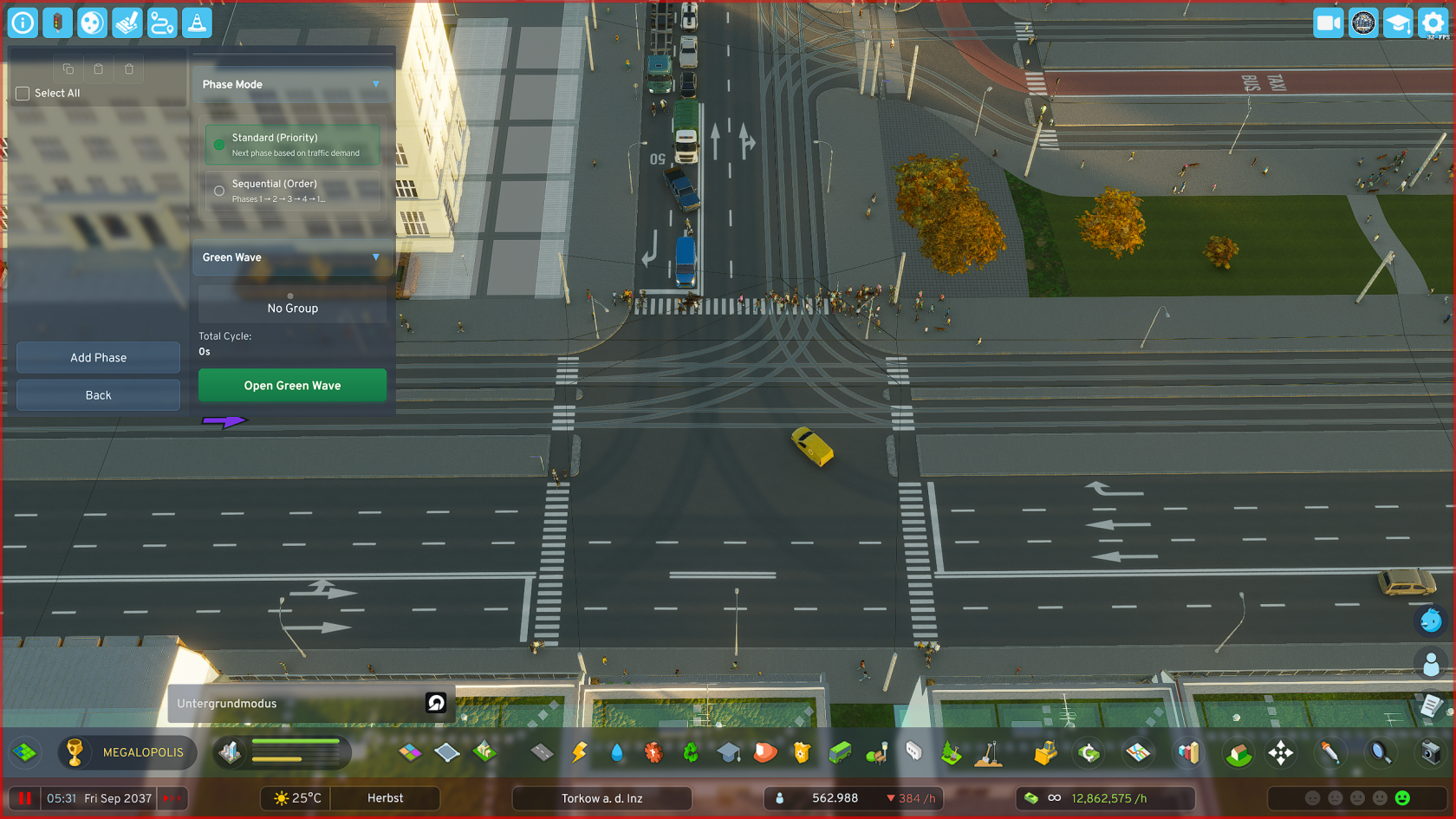
**Phase Editor (Base Menu)** Here you can manage your phases: **Create** phases, **move** phases, **edit** phases, **delete** phases, **copy** phases and **paste** phases
Adding a Phase

- Click on "Add Phase", the phase menu opens immediately
- Set the parameters of the respective phase according to your preferences and local requirements
- Also set here which road users should be prioritized in a phase.
For example, if a tram and individual traffic lane cross in a phase and you have set to prioritize public transit, traffic waits until the tram has passed the intersection
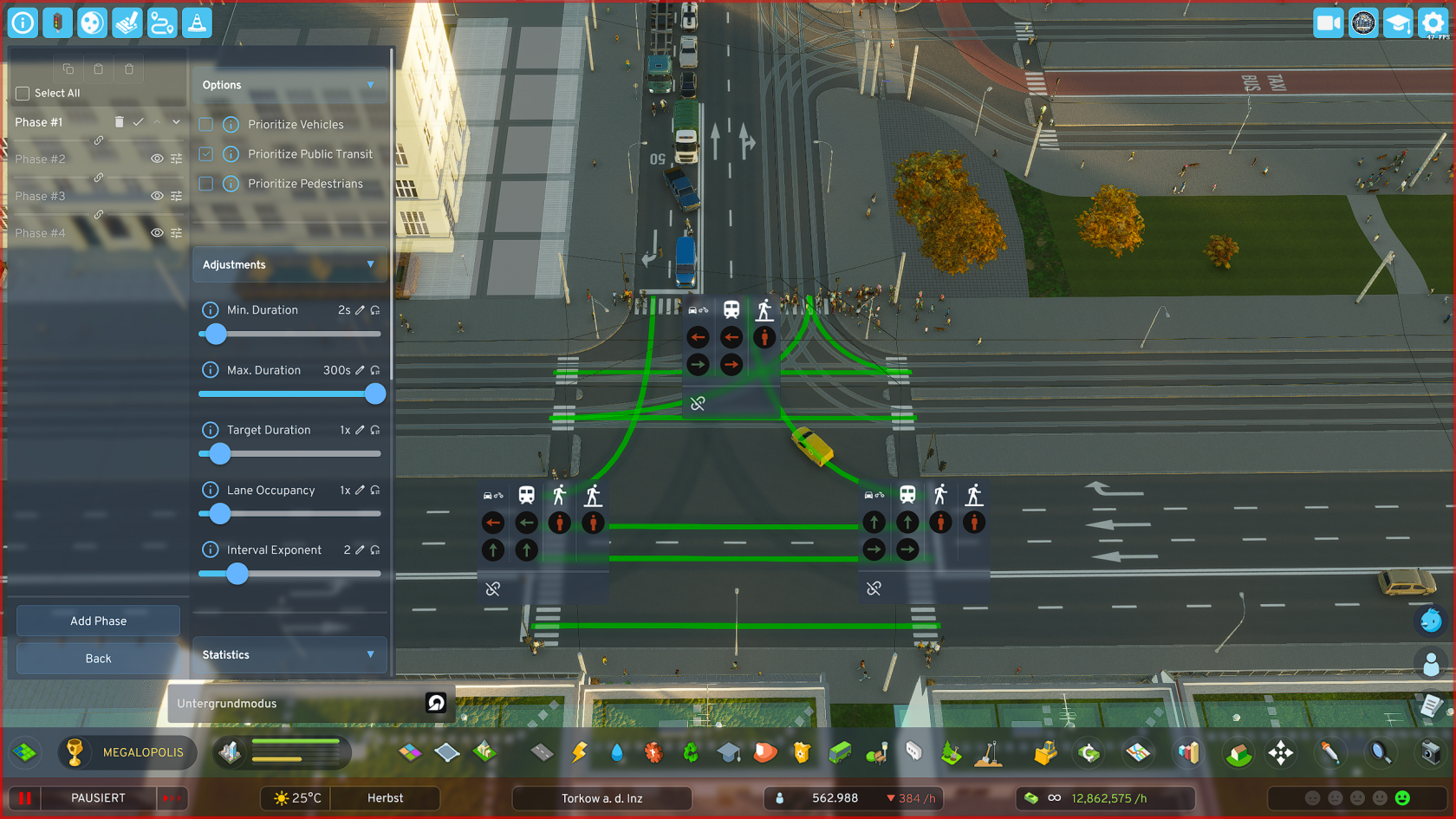
**Parameter Description**
- Minimum Duration: The phase must run at least this long, completely independent of whether there is high or low traffic on it
- Maximum Duration: The phase may be active for at most this long (e.g., to actively reduce phase duration on lower-traffic arms to favor main traffic directions)
- Target Duration: Influences (as one of two factors) the duration of the green phase. 2x = twice as long, etc.
- Lane Occupancy: Influences (as the second of two factors) the duration of the green phase, but target-controlled, not in principle like target duration, but ONLY when the lane is actually occupied by vehicles
- Interval Exponent: Vehicles and phases that would have to wait a long time are favored in Priority Mode to prevent them from "starving". However, this can be handled more elegantly with the more modern variant (Sequential Mode)
Setting Phase Lane Release
Create multiple phases this way and essentially create an individual heartbeat for each of your important intersections.
- Create as many phases as you need to cover all intersection arms and turning lanes at your respective intersection
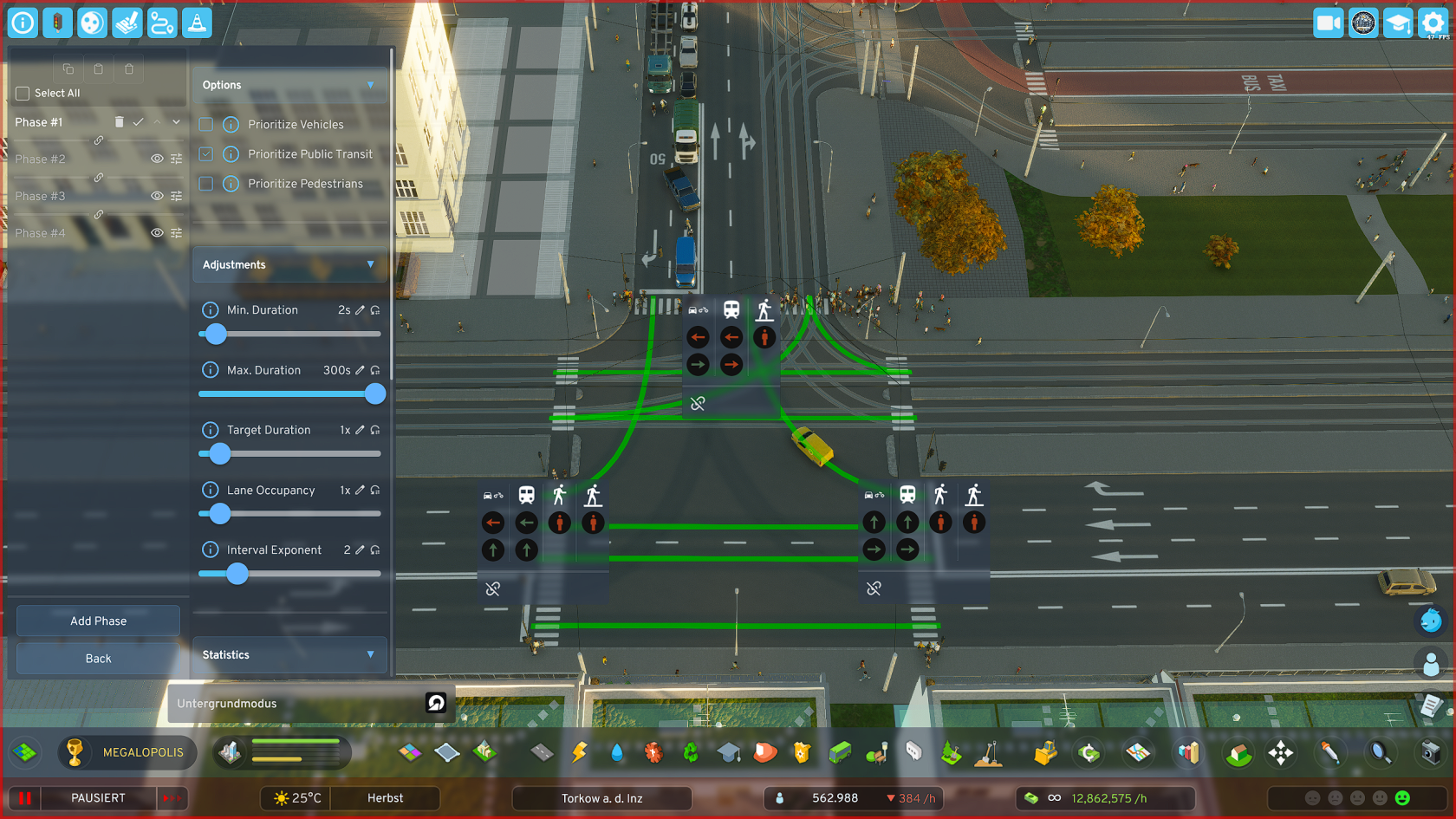
- Click on the red icon of the desired road user (cars/bicycles, public transit, pedestrians) to switch the corresponding traffic light from red to green
- Click again on the same symbol and the color changes to blue, which means that
- Click a third time to return the symbol to its default state (RED)
**TIPS**
1.: Create a separate pedestrian phase at intersections of major traffic arteries where many pedestrians also appear (most likely in the city center, or on later-planned major bypass roads, etc.)
2.: Important for "Green Wave":
The last phase in the overall cycle should (only relevant when using the "Green Wave" function) be an ADDITIONAL "useful phase" - i.e., a phase that transfers traffic on important routes, as the last phase is used by the sync system as a buffer for synchronization when overall cycle lengths of intersections in a group differ significantly or the number of phases of individual intersections differs too much.
Copying and Pasting Phases
- Click on the checkbox "Select All" in the PBM, top left near the 3 buttons
- Adjust your selection if needed
- Click on the "Copy" button
- Switch to the PBM of the other intersection to which you want to add the phases
- Click on the "Paste" button, the middle one of the 3 buttons
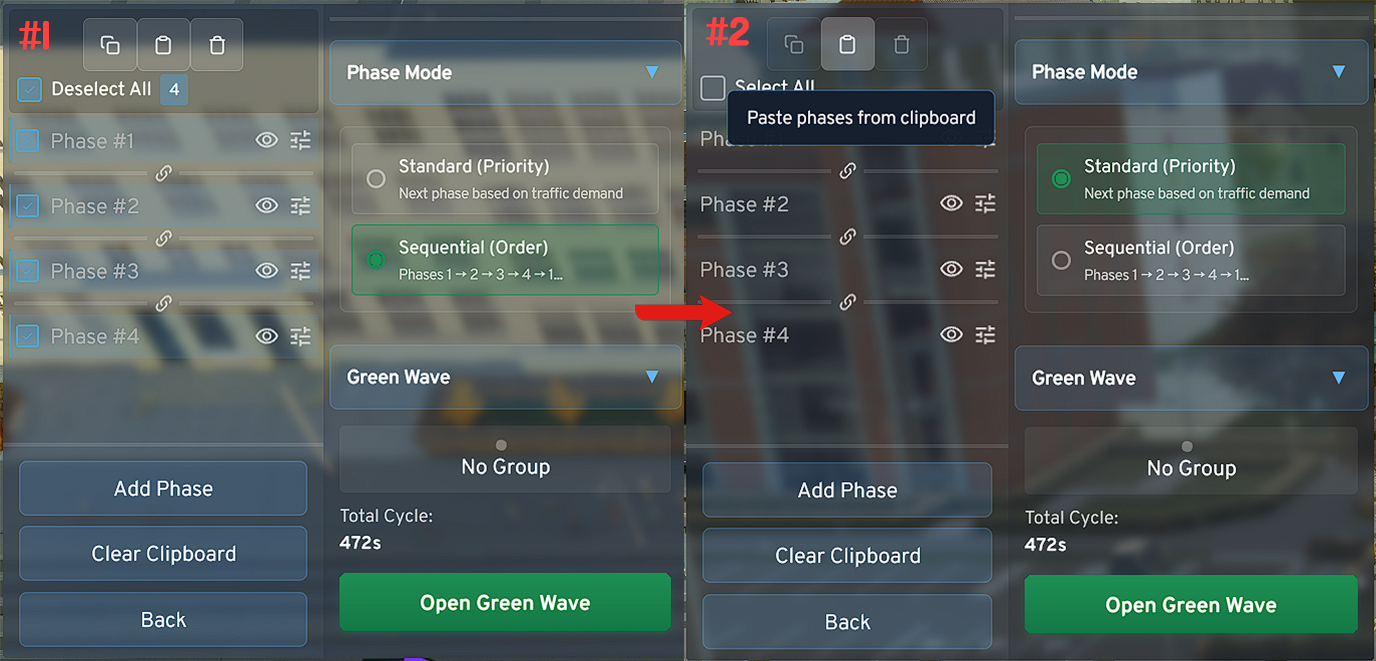
**Copy/Paste Tool**
- The tool cannot work magic. For non-identical intersections the system will try to transfer as many signal switches as possible when copying, but you should check them again and adjust if necessary.
- When synchronizing intersections, when using the "Green Wave" function, the system can be best optimized when grouped intersections are perfectly aligned using the tool regarding timing settings, i.e., min. duration, max. duration, etc.
Advanced Functions and Tools
"Green Wave" Tool
Introduction
The "Green Wave" tool now offers you the ability to synchronize traffic light phases of different intersections into coordinated corridors in the game.
For example, in downtown areas it can often happen that several cross streets cross the main traffic axis one after another.
To still guide traffic as optimally as possible along the main traffic axis over the respective intersections, you can use this tool to group individual intersections together.
In these corridor groups a reference intersection can then be defined, to which the other intersections in the group are aligned.
By giving other intersections in the group an "offset", i.e., time delay relative to the reference intersection, you can define in what time offset the respective intersection switches to Phase 1 after the reference intersection.
With some tinkering and/or good planning, your traffic lights along the corridor will then ideally switch to green just before approaching vehicles arrive (so that vehicles that missed the earlier phase cycle can still be cleared before new traffic arrives)
Preparing the Green Wave
To be able to use the Green Wave tool, it is essential that you use custom phase cycles at the respective intersections and not any of the predefined options.
To save yourself work, you could for example copy the phase cycle of the reference intersection and paste it at intersections affected by the Green Wave.
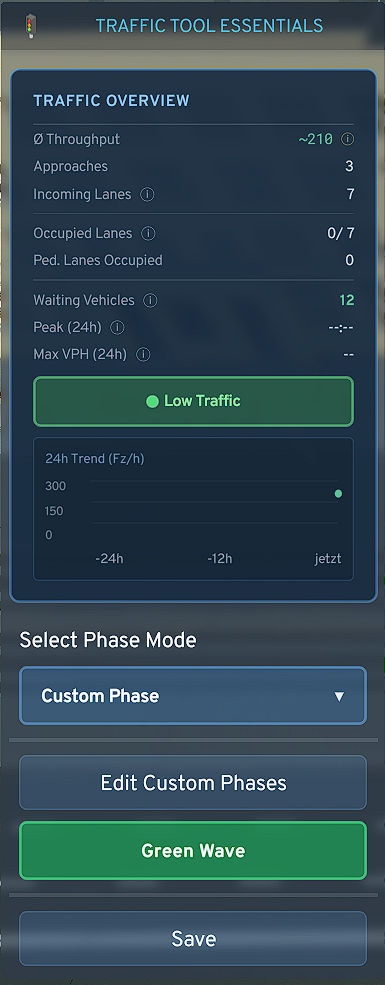
- If not already done: Set the phase mode in the dropdown menu to "Custom Phase" and create required phases in the intersection or copy phases from other intersections
- After that, you can already press the appearing "Green Wave" button
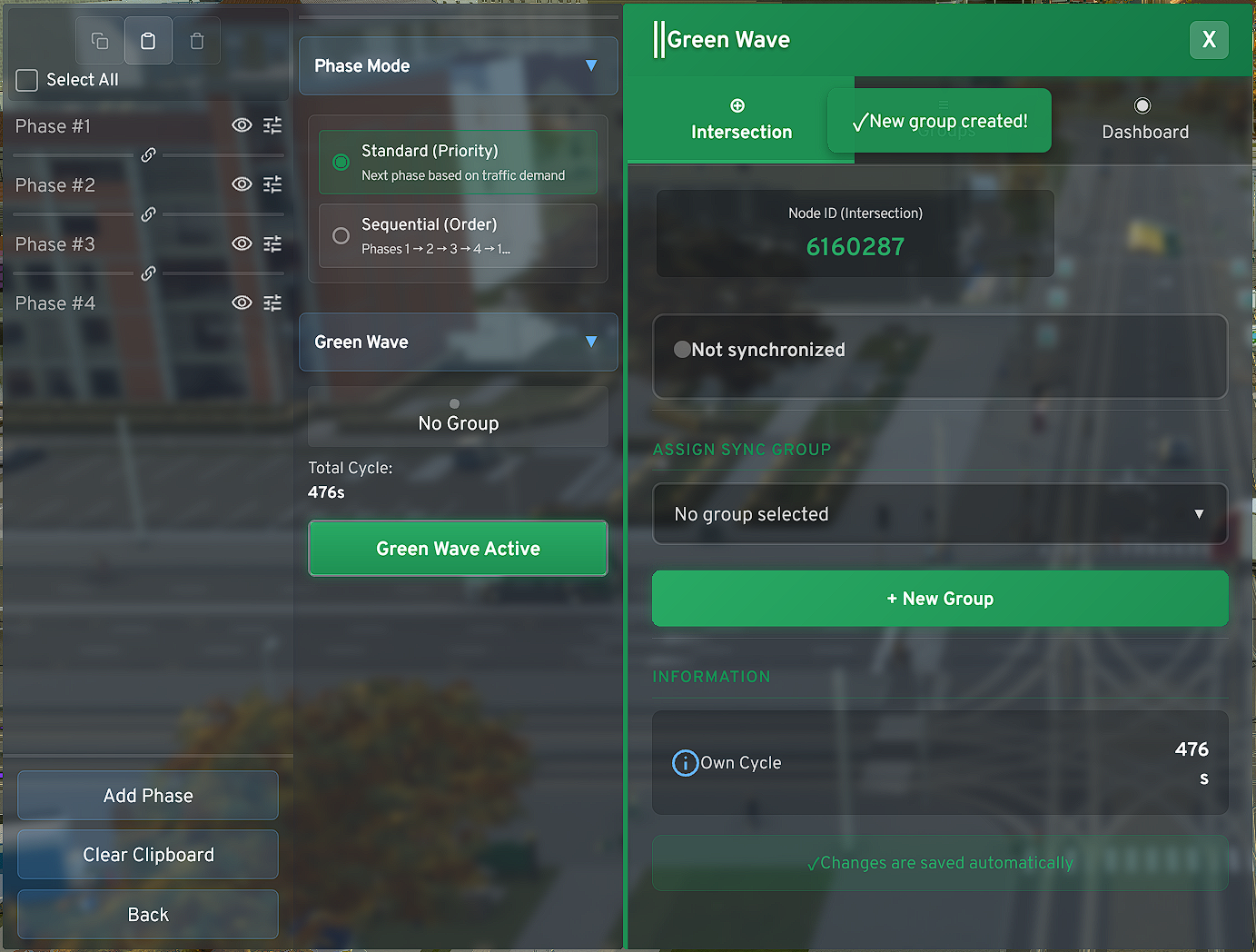
**Use Case Demonstration (Example)** *Including the marked reference intersection*
**Algorithm Design** *(Green Wave System Architecture)*
For a functioning "Green Wave" the first phase (P1) of each phase cycle must prioritize the traffic direction(s) in which the wave should be directed.
Note the following:
The first phase of an overall cycle must be the phase that determines the direction of the green wave. The system synchronizes all intersections so that they are ready to switch to Phase 1 at the right time when it's their turn.
The second phase of an overall cycle should be a "useful phase". This means: The system must use the last phase to compensate for any imbalances when individual intersections have too strongly deviating overall cycle durations (because not well aligned) or a too strongly deviating number of phases at the intersections (≥2 phase difference between at least one intersection and the others).
The last phase of intersections will therefore occasionally be stretched to keep the system in sync. To avoid "starving" crossing streets, i.e., compressing their phase length so the intersection can catch up, I decided to rather hold the last phase long in emergency and wait until the intersection could go through its cycle. There is also a Rush Mode, which the system activates during Force Release.
The Force Release has occasionally been noticed in version 2.2.2 for sometimes rough intervention. In the upcoming version update, these systems will also be adjusted again. In most use cases, however, this should not become a problem and can be circumvented by your own actions. Some tinkering is then required.
Creating a Corridor Group
- Now click on "New Group", whereupon it will be created
- Select the just created group in the dropdown menu, which is still called "New Group", and/or rename it (preferably in the designated "Groups" tab)
- The first added intersection is in most cases also intended as the reference intersection. The reference intersection is determined with offset 0s. Or the intersection with the lowest offset automatically becomes the reference intersection.
- Now add another intersection, ideally directly the intersection following the reference intersection, then the one after that - and so on
- The intersections can easily be prioritized at any time via the offset setting
- The offset calculator can perhaps give you initial guidance to roughly estimate the values you need to set. With increasing city size and increasing simulation slowdown, 12 set seconds are of course no longer exactly 12s. In the backend, frames are converted to humanly understandable values and then transmitted to the frontend.
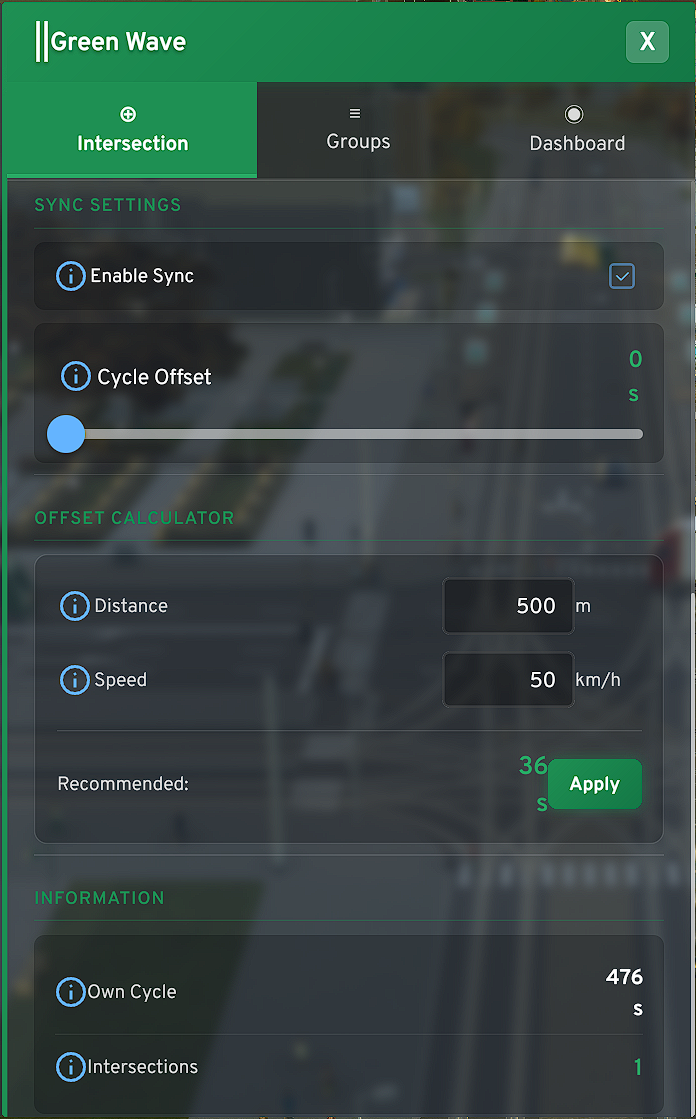
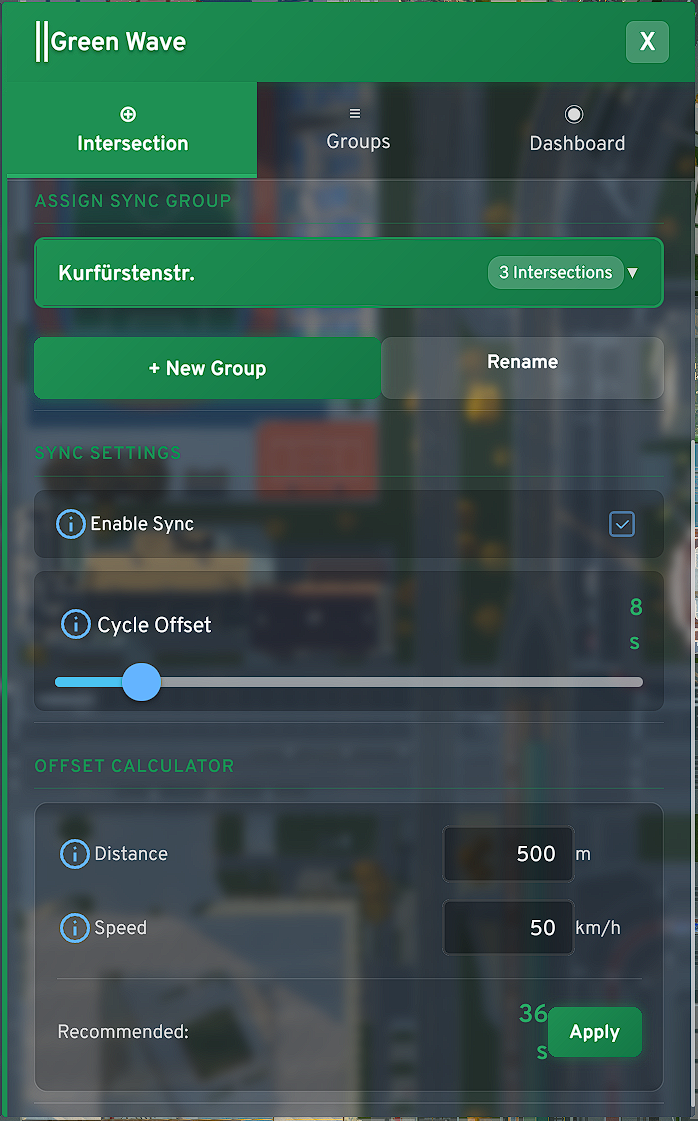
**System Architecture & Reference Logic** (summarized) *To ensure synchronicity across different intersection types, the system establishes a **dynamic reference control**. The following logic rules apply for stable operation:*
- P1 Prioritization: The first phase (P1) of a cycle defines the direction of the "Green Wave". The system times all intersections based on their individual offset so that they initialize Phase 1 on time at the calculated moment
- Sequential Phase Switching: For Green Wave operation, it is essential that phases switch according to the new "Sequential Mode" switching mode established with TTE, as phase switching in Legacy Mode from TLE cannot be predicted and thus cannot be synchronized. Nowhere in the world would a green wave be programmed this way, and neither here. To use Legacy Mode again, you must remove the affected intersection from the respective corridor group
- Dynamic Drift Compensation: With different overall cycle lengths of individual intersections or significantly deviating phase counts (difference ≥2), the system protects cross traffic from "starving". Instead of compressing phases, the last phase of an intersection's cycle is stretched when needed to balance imbalances and wait for the global timing of the reference intersection
- Reference Anchor (Offset 0s): The intersection with the lowest offset (ideally 0s) acts as the pacemaker. All further offsets must be calculated relative to the reference intersection – not to the respective previous intersection
Groups Panel
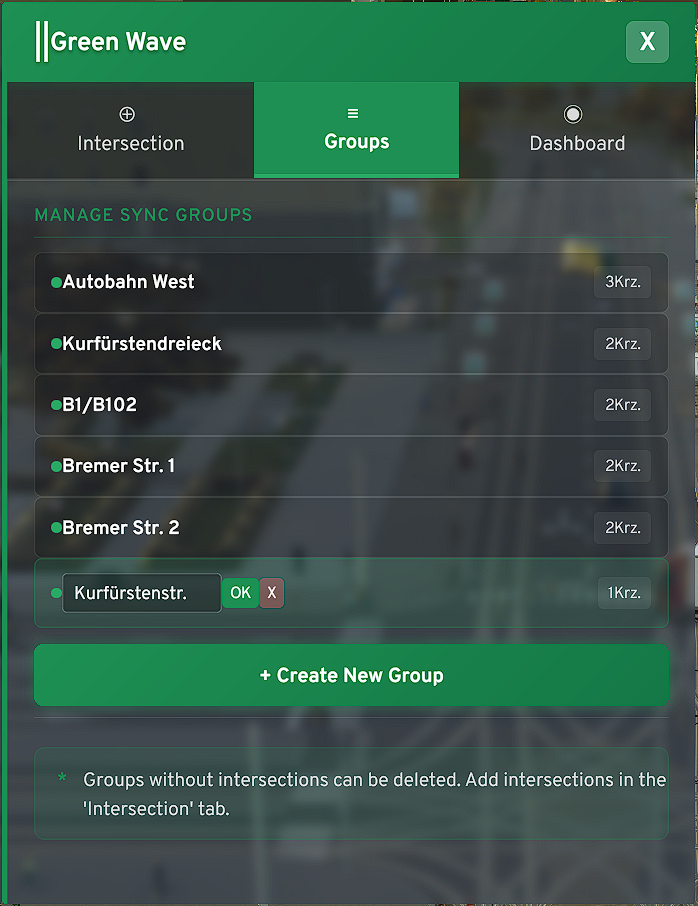
In the "Groups" tab you manage the logical units of your corridors. Here you define the basic structure before going into the fine-tuning of individual intersections.
- Central Management: Create new groups with one click, rename them for better overview (e.g., by main traffic axes like "B1 / Potsdamer Str.") or delete no longer needed associations
- ECS Logic: The system works resource-efficiently. Thanks to the Entity Component System (ECS) architecture, empty groups with no data stored are automatically not permanently saved. You don't have to worry about "cleaning up" orphaned, empty groups – the system handles this in the backend for you
- Status Feedback: Directly in the panel you can see at a glance how many intersections are already assigned to a group and whether the group has been initialized (recognizable by the green dot/status).
Rename your groups only after you have assigned the desired intersections in the "Intersection" tab. This simply prevents edge cases in data synchronization if you make complex changes to the group structure
Dashboard
The Dashboard is your control center. Here you see in real-time whether your planning is working out in the game world.
When you make significant changes to a corridor group, it can sometimes happen that you notice chaotic behavior - depends on the differences of the respective intersections
- The SYNC Status: If the SYNC icon lights up green, the intersection is successfully anchored in the group's global timing.
- If an intersection falls out of sync (e.g., through manual interventions or extreme simulation lags), you'll see here how the Force Release Logic or Rush Mode attempts to restore synchronicity.
- Phase Progress Bar: The green bar under "Phase X / Y" shows you exactly at which point of the cycle the intersection is located.
- Important: Since the system sometimes stretches the last phase when there is imbalance, you will observe here how the bar sometimes "waits" at the end of the cycle. This is not a bug, but the Dynamic Drift Compensation in action
- Cycle Variance: Here you also see the total duration of a cycle in seconds. Make sure that these values are as close as possible for all intersections in a group (harmless: e.g., 476s to 472s in the screenshot). The greater the difference, the more massive the system intervention needs to be
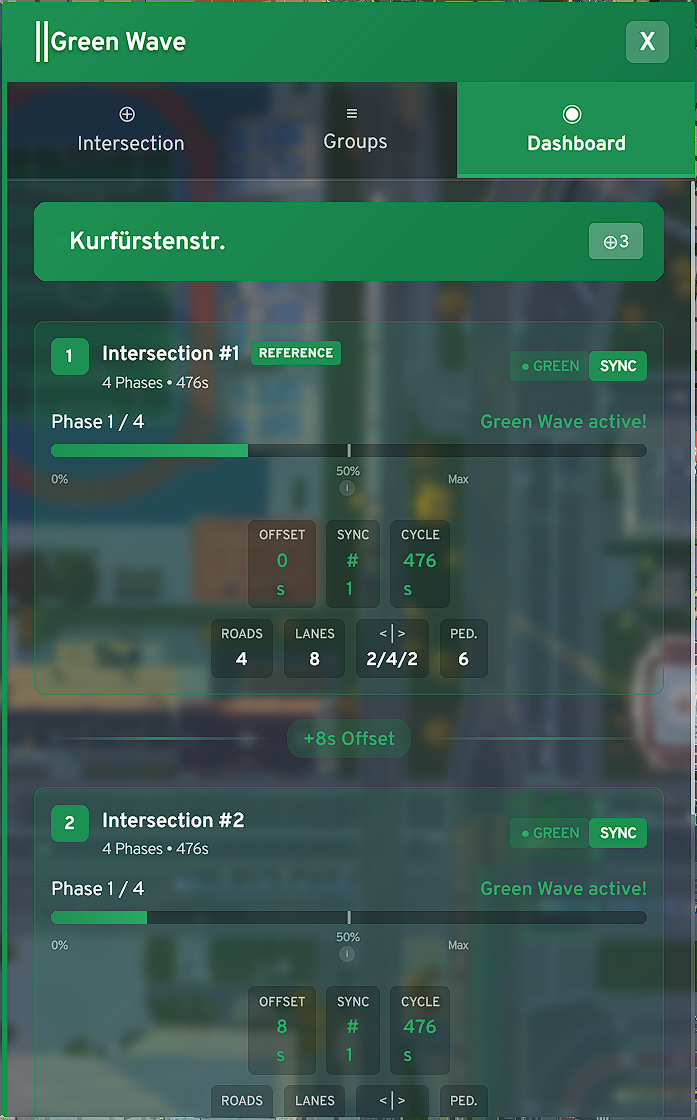
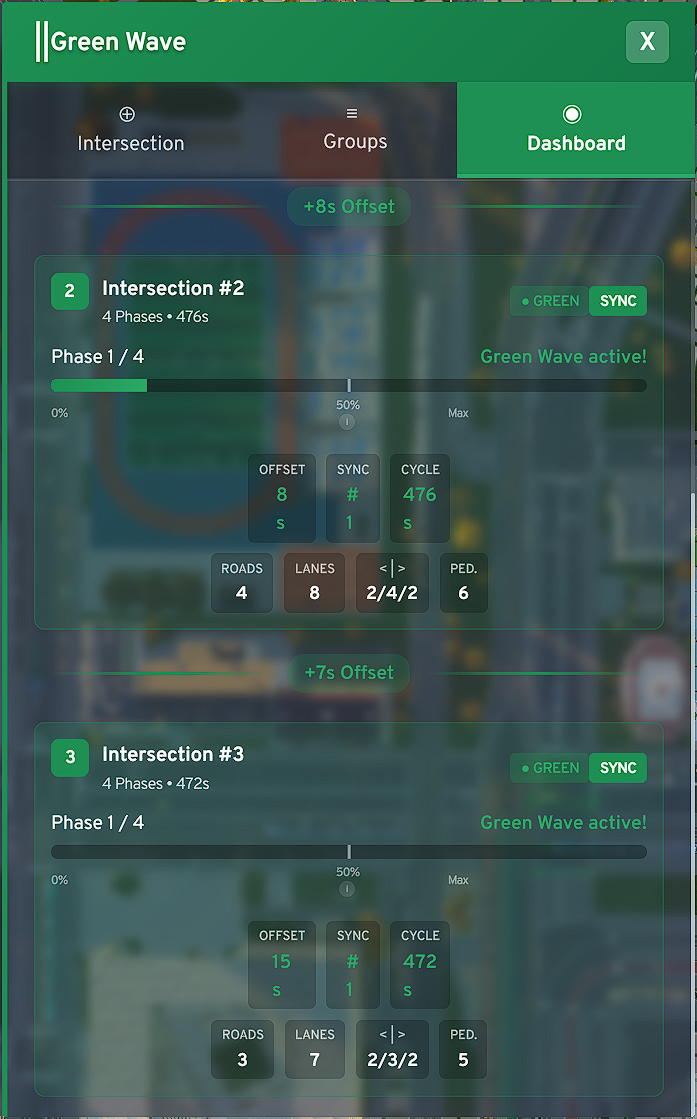
**Finding the "perfect" Offset** - Use the Dashboard to observe the real traffic flow. If you see that vehicles arrive at intersection #2, but the bar is only at 10% of Phase 1, your offset is too high. The goal is for Phase 1 to start (bar starts running) when the vehicle queue from the reference intersection reaches the stop line, or perhaps a bit earlier to account for a tram that previously held up the Green Wave. You have complete freedom!
Known Issue - When creating and setting up groups, it can happen that all intersections hang at P1 in the Dashboard and do nothing. This is really not nice, but you can work around it. Remove all intersections from the affected group, delete this group once it contains no more intersections, create a new group and rename it only when the desired intersections are in it and running. After that, there should be no more problems, no matter what changes you make. When all phase cycles of the intersections are identical in length, the system can sometimes run into an edge case where the Force Release Logic is not called at all, which should kick in in such cases.